 |
|
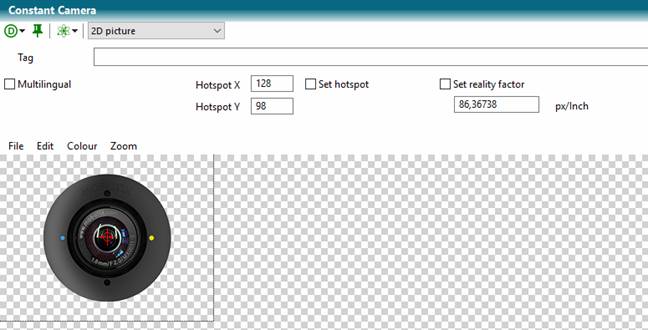
2D picture constants can be assigned to Picture variables.
Raster graphics (BMP, JPG, PNG, GIF, ICO) and vector graphics (EMF) can be stored in this constant type.
|
Property |
Description |
|
Multilingual |
If the image contains e.g. text, different images can be stored for different dialog languages. |
|
Default |
Sets the default language ID if an image of a language container is empty. Is only available if multilingual is turned on. |
|
HotspotX, HotspotY |
Sets a reference point from the upper-left corner of the image. The reference point allows the image to be easily positioned via an insertion point. |
|
Reality factor |
DPI value of the image (dots per inch) If a real object is displayed on the picture, it is possible to enter here which real dimensions (e.g. length) this object has. The dimensions are recorded
in dots per inch. For example, if the object of the image is 10 cm long in
reality, and the object is displayed in the figure over 300 pixels, this
results in a reality factor of |
|
Tag |
An optional userdefined value added to the constant. |
Upload (FileàUpload)
The image material can be transferred to a web server via File Transfer Protocol.
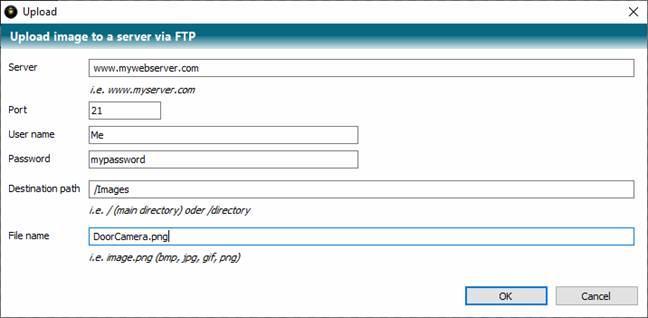
To do this enter the server and the login information.
Set the destination path and file name of the graphic. Only raster graphics are immediately web capable. A compressed format is recommended, such as JPG, PNG or GIF.
External source (FileàExternal source)
The graphic can be loaded from an external source. This relieves the knowledge base of memory-intensive data. However, the graphic is then loaded for the windows client from the external source and must be available.
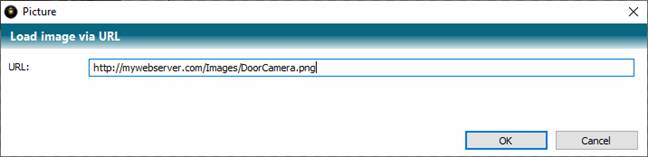
Specify the URL to the external source, such as http://mywebserver.com/Images/DoorCamera.png
Save as (FileàSave as)
The graphic can be saved as a file for archiving purposes.
Convert color to transparency (EditàConvert color to transparency)
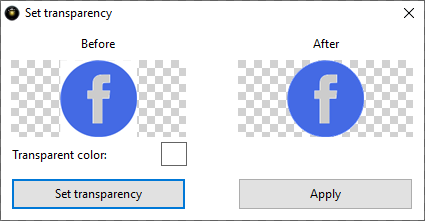
The color set by the transparent color is assigned an alpha value of 0 by clicking the Create Transparency panel and can then be applied.
Convert to icon (EditàConvert to icon)
An attempt is made to convert the graphic to the ICO data format.
Attention
If the editor is not left, image manipulations can be undone. After leaving the editor, this is no longer possible. Therefore, it is recommended that you backup the class before actions.
 Contents
 Index
Index Previous
 Next
Next